Help Center
Everything you need to know about evaluations, rules, payouts and the trading platform. Can't find your answer? Open the chat bubble at the bottom-right and our team will help.
🌐 Getting started
What is Voltra and how does it work?
Voltra is a simulated futures trading firm. You purchase an evaluation on a simulated account, and your goal is to reach a profit target while respecting the risk rules (maximum drawdown and daily loss limit). When you complete the evaluation, your account becomes a simulated funded account that is eligible for payouts.
All trading takes place on simulated funded accounts, not on live market money. Payouts are based on the performance you achieve under the published program rules.
Which account sizes can I choose?
Voltra offers several evaluation sizes so you can pick the one that matches your style and budget — typically 25K, 50K, 100K and 150K. Each size has its own profit target, maximum drawdown, daily loss limit and contract limits.
You can see the exact numbers for every plan on the Pricing page before you buy.
Do I need experience to start?
No prior experience is required to purchase an evaluation and start trading with TradingView or the Ironbeam web platform. That said, futures trading carries risk even in simulation, so we strongly recommend understanding the core rules first — the profit target, the trailing drawdown and the daily loss limit — so you don't lose an account to a rule you didn't know about.
Is there a time limit to pass the evaluation?
No. There is no maximum number of days to complete an evaluation. You only need to meet the minimum trading days (as low as 1 on some plans) and reach the profit target while staying within the risk rules. You can take as long as you need.
How soon can I trade after buying?
Your account is created immediately after purchase and your connection details are emailed to you. Connect TradingView or the Ironbeam web platform (see the step-by-step guides in the Platform section) and you can start trading right away during market hours. If the market is closed, your orders will be available when the session reopens.
⚖️ Rules & evaluation
What is the profit target?
The profit target is the amount of simulated profit you need to reach to pass the evaluation. It is fixed per plan (for example, a 50K account may target roughly 6% of the account balance). Your live progress toward the target is shown on your account page, so you always know how much more you need.
What is the maximum drawdown?
The maximum drawdown is a trailing loss limit that follows your highest equity point. As your account grows, the drawdown floor rises with it; once it locks at your starting balance (on most plans) it stops trailing. If your equity — including open positions — falls below that floor, the account is closed.
Your account page shows your live "drawdown remaining" so you can manage risk in real time.
What is the daily loss limit?
The daily loss limit caps how much you can lose in a single trading day, measured from the day's starting balance. If you reach that cap, your open positions are closed and trading is locked for the rest of that day — but your account is not closed or failed. Trading reopens automatically at the next session (6:00 PM ET) and you continue with the balance you have left. The limit resets each new trading day, so a fresh day always starts with the full allowance.
How many minimum trading days do I need?
Each plan has a minimum number of days on which you must place at least one trade before the evaluation can pass — on some plans this is as low as 1 day. This prevents an account from passing on a single lucky trade and encourages consistent activity.
What is the consistency rule?
On plans with consistency enabled, no single trading day may account for more than the published percentage of your total profit — commonly 50%. This keeps results steady rather than dependent on one outsized day.
If one day is too large a share of your profit, you simply keep trading on other days to bring the balance in line. The account passes automatically the moment the numbers satisfy the rule, and your dashboard tells you exactly how much more profit you need.
What is the maximum contract size?
Each plan limits how many contracts you can hold at once, split into micros and minis (for example, 40 micros or 4 minis). Any order that would push you over your limit is blocked automatically, so you can't accidentally breach it. Larger account sizes allow larger positions.
What happens if I break a rule? Can I reset?
These two rules work differently. If you hit the daily loss limit, trading just pauses for the rest of that day and reopens next session — the account is not lost. If you breach the maximum drawdown, that ends the evaluation and the account is marked as blown. In that case you do not have to buy a new evaluation — you can reset the account to a fresh evaluation from your account page and start again from the initial balance.
How many funded accounts can I have at the same time?
You can hold up to 5 active funded accounts at once. You can pass as many evaluations as you like, but only 5 funded accounts trade at a time.
If you pass another evaluation while you already have 5 funded accounts, the new one goes into a waiting list (shown as "Standby" on your dashboard). As soon as one of your 5 funded accounts becomes ineligible or is closed, the account that has been waiting the longest is automatically promoted to funded and starts trading — you don't have to do anything.
Which trading practices are prohibited?
To keep the program fair, the following are not allowed:
- Hedging or opening opposite positions across accounts (yours or others').
- Collusion, group trading or account-sharing.
- Martingale and excessive grid / averaging-down strategies.
- Exploiting price latency, feed errors or news spikes.
Our review engine flags these patterns. Confirmed abuse can close the account without payout. The full list is in the Trader Agreement and Program Rules.
💳 Payouts & KYC
How do I request a payout?
From an eligible simulated funded account, open the Withdrawals page, choose the amount and your payout method, and submit the request. Every request is checked against the published payout rules — verified identity, signed agreements, minimum profit, day requirements and the profit buffer — and paid once approved.
The Withdrawals page shows a checklist of exactly what you still need before a request can go through, so nothing is a surprise.
Why do I need identity verification (KYC)?
KYC (Know Your Customer) verification protects both you and the firm against fraud and ensures payouts go to the right person. You must be verified before your first payout. Submit your documents from your Profile page; verification is usually approved quickly.
How much of the profit do I keep?
Funded traders keep up to 80% of the profit they generate on the simulated funded account, with the exact split shown on your plan. The remaining share stays with the firm.
How often can I request a payout?
Payouts unlock after a minimum number of qualifying trading days on your funded account, and then follow a set cadence — for example, once every 5 days. Your account page always shows the date your next payout becomes available.
Is there a minimum or maximum payout?
Yes. Each plan has a minimum payout amount and a maximum per request, plus a small profit buffer that must remain in the account after the payout. These figures are shown directly on the Withdrawals page so you can plan your request.
How long does it take to get paid?
Once your request passes review it is scheduled for payment through the method you selected. Processing times depend on the method, but approved payouts are handled promptly. You can follow the status of each request in your Withdrawals history.
📈 Platform — how to connect & trade
How to trade: connect TradingView (recommended)
TradingView is the recommended way to trade your account: clean charts and one-click execution, connected to your Ironbeam account. You only need to connect it once.
| Broker | Ironbeam |
| Environment | Demo |
| Username | Your account number (e.g. VOLTRA51425056-1) — exactly as is, including the -1 at the end |
| Password | The one emailed to you when your account was created |
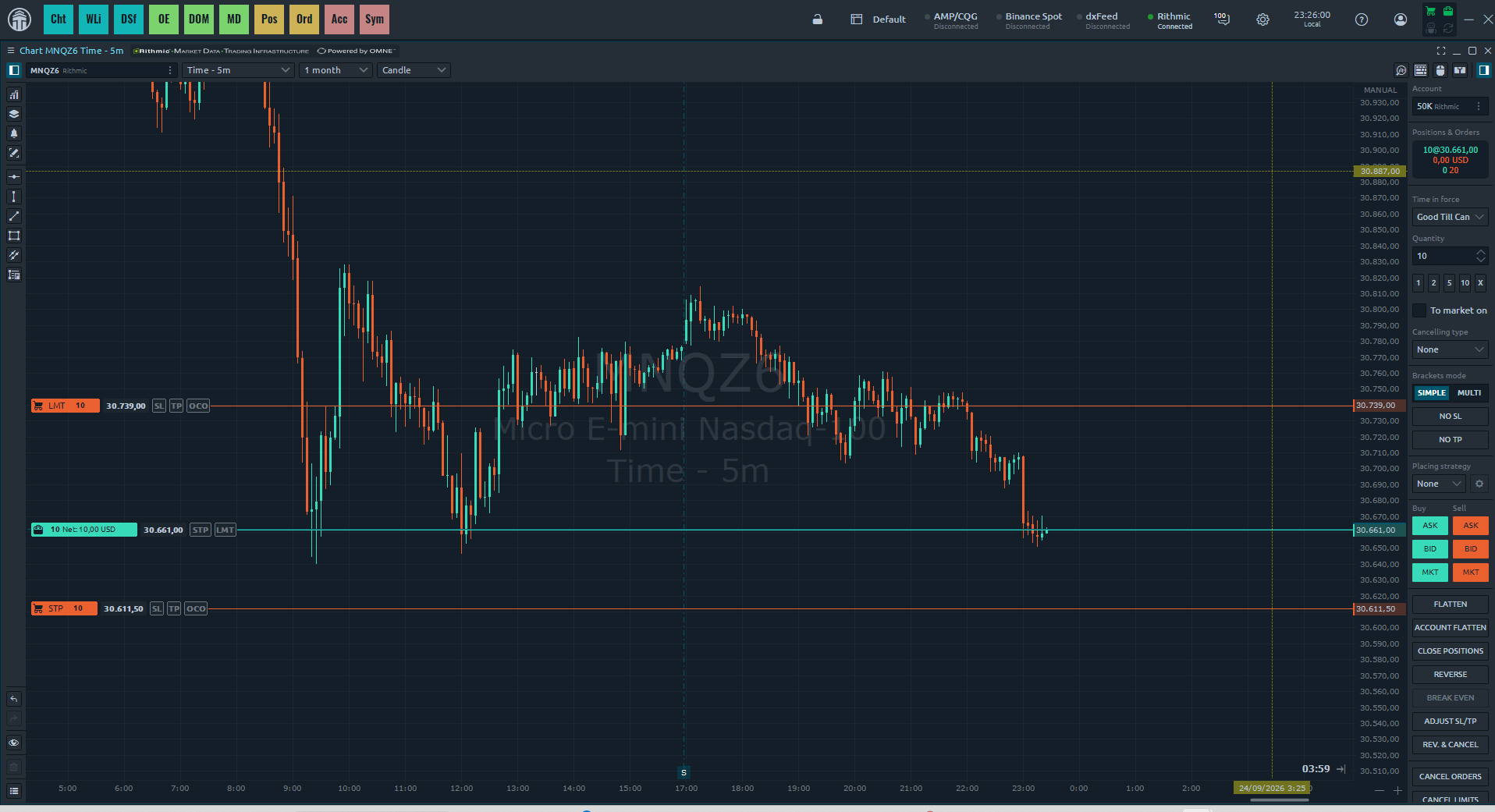
How to trade: connect Quantower with Rithmic (recommended)
Quantower is a fast, modern platform that connects directly to Rithmic — no extra approvals needed. It's our recommended option right now. You connect with the same credentials we email you (System Rithmic Paper Trading).
| Connection | Rithmic |
| Server | Rithmic Paper Trading (Paper Chicago) |
| User Name | The User Id emailed to you (e.g. VLTRU000123) |
| Password | The one emailed to you when your account was created |
How to trade: connect NinjaTrader 8 with Rithmic
NinjaTrader 8 is one of the most popular platforms for Rithmic. You connect once with the credentials we email you (System Rithmic Paper Trading). Follow these steps.
| System | Rithmic Paper Trading |
| Gateway | Chicago Area |
| User Name | The User Id emailed to you (e.g. VLTRU000123) |
| Password | The one emailed to you when your account was created |
How to trade: connect R|Trader Pro with Rithmic
R|Trader Pro is Rithmic's own platform. Download it from rithmic.com (desktop) or use the web version. Then sign in with the credentials we emailed you.
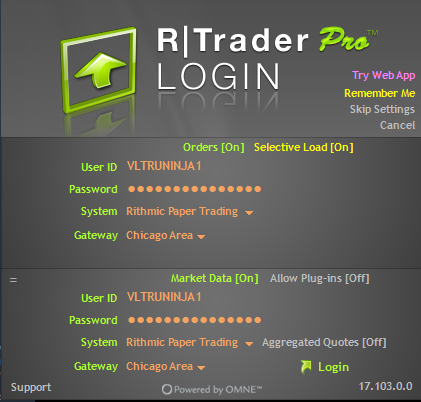
Rithmic: which platforms can I use & the market-data agreements
With a Rithmic account you can trade on any Rithmic-compatible platform. The login is the same everywhere (System Rithmic Paper Trading + your User Id + password).
The first time you connect on any platform, Rithmic shows 2 market-data agreements you must sign to enter. This is a standard Rithmic/exchange requirement, not a Voltra charge. Read and accept both, and when asked for your status choose Non-Professional (typical for individual traders). You only do this once.
How to trade: Ironbeam web platform
You can also trade directly on the Ironbeam web platform. Here the login is different: you use your email as the username (not the account number).
| Page | ironbeam.com/app |
| Username | Your email address |
| Password | The same one emailed to you |
Which markets can I trade?
Voltra offers popular futures across indices, metals, energy, FX and agricultures — including the micro E-mini Nasdaq (MNQ), micro E-mini S&P (MES), micro Gold (MGC) and micro Crude Oil (MCL). The full list of approved products and their commission per side is available in the Platform section of the Help Center.
What order types can I use?
You can use market, limit and stop orders, and attach a stop-loss and take-profit to any position. On TradingView you place them from the Trading Panel or directly from the chart; on the Ironbeam web platform you use its order ticket. Your contract limit for the plan is enforced automatically, so an order that would exceed it is blocked.
Where do I see my balance and statistics?
Your Dashboard shows your live balance, your loss floor (Max Loss) and your live profit-and-loss. Each account also has a Statistics page with win rate, profit factor, average win and loss, and your cumulative P&L curve — so you can review your performance and improve.
🤝 Partner Program
What is the Voltra Partner Program?
It is our official affiliate program for creators, educators and trading communities. Approved partners get a unique referral link and earn a commission on every evaluation their audience purchases. It is application-only — not every account can become a partner; you have to apply and be approved first.
How do I become a partner?
Open the Partner Program page from your menu and submit the application (your platforms, audience, and how you plan to promote Voltra). Our team reviews every application by hand and emails you a decision. We approve serious creators and communities — quality of audience matters more than size.
I was approved — what happens next?
You receive an approval email, then you open your Partner Program page and sign the Partner Agreement (you tick the box and type your full legal name). Your referral link, level ladder and earnings stay locked until you sign. This protects both sides and keeps promotion honest and compliant.
How is my commission rate decided?
Your rate is automatic and based on how much your referrals purchase during the current calendar month. The more volume you bring, the higher your tier:
| Level | Monthly referral volume | Commission |
|---|---|---|
| 🥉 Bronze | $0 – $4,999 | 5% |
| 🥈 Silver | $5,000 + | 8% |
| 🥇 Gold | $15,000 + | 12% |
| 💠 Platinum | $35,000 + | 16% |
| 💎 Diamond | $75,000 + | 20% |
Volume is the net amount Voltra actually collects from your referrals (after coupons and refunds).
Does my level reset each month?
Yes. On the 1st of every month your volume resets to $0 and your level restarts at Bronze (5%), so every month is a fresh climb. Commission you already earned in previous months keeps the rate it was earned at — the reset only affects your current level going forward.
How and when am I paid my commission?
Commissions are paid through Stripe. Connect your Stripe account on the Partner Program page — Stripe securely collects your bank and tax details (W-9 / W-8BEN). Once your balance owed reaches the $500 minimum, your commission is ready to be paid out. You are an independent contractor and responsible for your own taxes.
What are the rules for partners?
Promotion must be honest and compliant: no guaranteed-profit or income claims, no describing Voltra as real-money funding (all trading is simulated/evaluation), no spam, no bidding on Voltra brand terms, and no fake or misleading pages. You may not refer yourself or buy through your own link. Fraudulent, refunded or charged-back referrals are disqualified and their commission can be reversed. Full terms are in the Partner Agreement you sign.
Where do I find my link and stats?
Everything lives on the Partner Program page: your referral link, how many people you referred, how many challenges they bought, your current level and progress to the next one, and your earned / paid / owed commission.
🚫 Restricted countries
Because of international sanctions and financial regulations, Voltra does not offer its services to residents of, or persons located in, the jurisdictions below. Accounts opened from these locations may be closed and are not eligible for payouts. If you are unsure whether your country qualifies, contact support before purchasing an evaluation.
This list reflects jurisdictions subject to comprehensive sanctions or classified as high-risk, and may be updated at any time without notice.